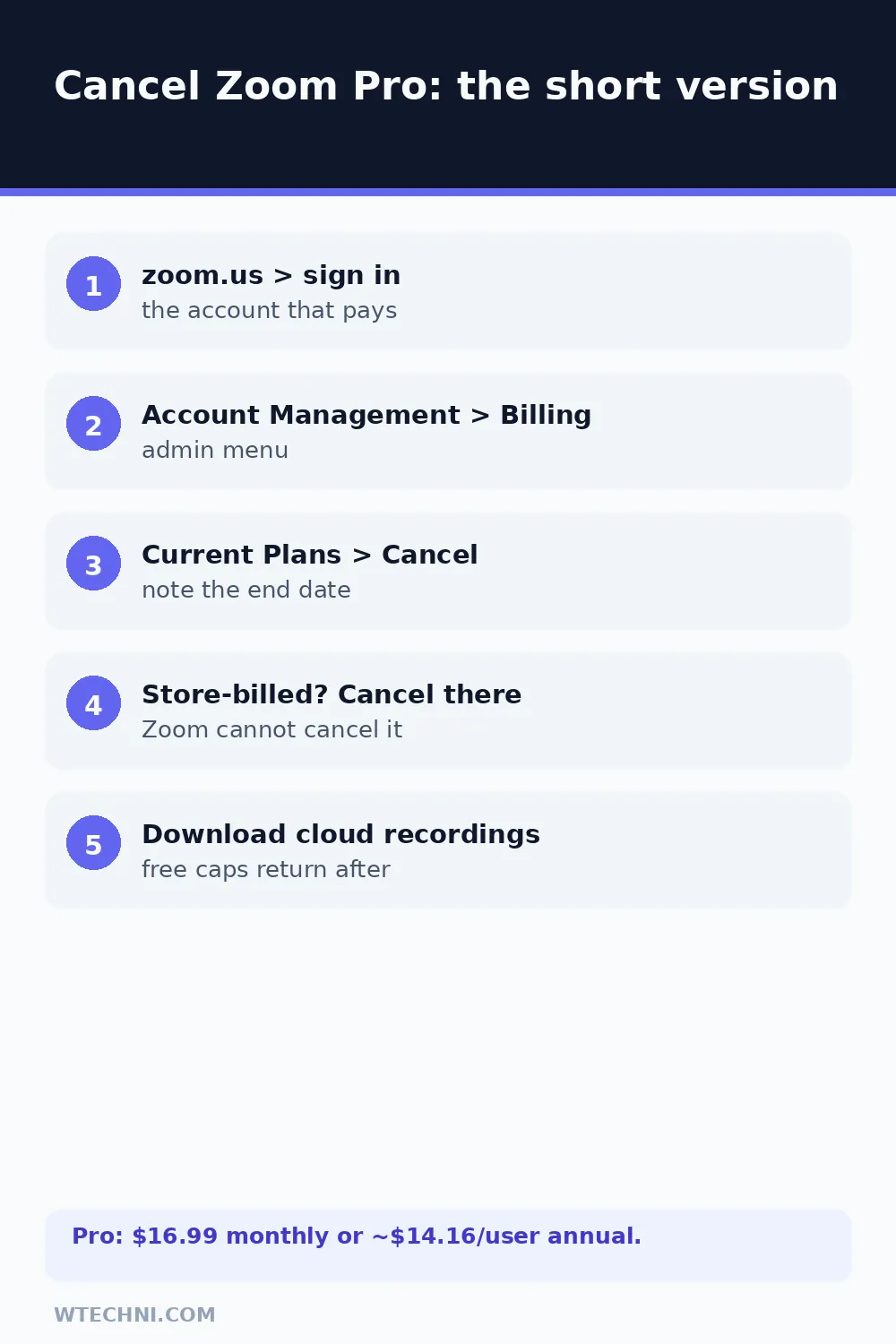
You can cancel Zoom Workplace Pro yourself in about three minutes from the account billing page, no support call needed. Sign in at zoom.us, open Account Management, then Billing, find your Pro plan under Current Plans, and select Cancel Subscription. Zoom asks why you're leaving, confirms the end date, and your paid features keep running until the term you paid for closes out.
The only genuinely tricky part is billing origin. Zoom sells through its own site and through Apple's and Google's stores, and Zoom's help center states plainly that its support team cannot cancel or refund subscriptions managed by those third parties. Figure out who billed you first, the rest of this guide follows from that answer.
How to cancel Zoom Pro (Zoom-billed accounts)
Zoom's support documentation covers this flow:
- Sign in at zoom.us (or zoom.com) with the account that holds the subscription.
- Select Account Management in the admin menu, then Billing.
- Open the Current Plans tab.
- Find Zoom Workplace Pro and select Cancel Subscription.
- Answer the exit survey and confirm. Zoom displays the exact date the plan ends.
Note the end date it shows, that's when Pro features stop and the 40-minute group-meeting cap returns. If you run add-ons (Extra Cloud Storage, Large Meetings, Webinars), each one has its own line and its own cancel control; cancelling Pro alone leaves add-ons renewing, which is a classic forgotten-charge trap.
If Apple or Google billed you
Zoom's help center is unambiguous: subscriptions purchased through the Apple App Store or Google Play can't be cancelled or refunded by Zoom Support. The store is the billing relationship.
iPhone or iPad: open Settings, tap your name at the top, tap Subscriptions, select Zoom, and hit Cancel Subscription. Android: open the Google Play Store, tap your profile icon, go to Payments & subscriptions, then Subscriptions, select Zoom, and cancel there.
Refunds for store purchases follow the store's rules too: Apple processes requests at reportaproblem.apple.com, and Google's short no-questions window runs through Play's order history. Don't ask Zoom for money Apple or Google took, their own support can't touch it.
Will Zoom refund you?
Zoom doesn't publish a self-serve refund window for direct subscriptions, and a standard mid-term cancellation runs out the paid term rather than returning money. That said, refunds do happen in the right circumstances, and Zoom's community billing threads show the pattern:
| Your situation | Realistic expectation |
|---|---|
| Charged after you already cancelled | Billing error. Strongest case, contact Zoom billing support with receipts. |
| Duplicate charge or wrong account | Fixable via billing support; expect the duplicate reversed. |
| Mid-term change of mind | No refund. Pro features run to the end of the paid term. |
| Auto-renewal you forgot, charged recently | Discretionary. Ask quickly and politely; outcomes vary. |
| Billed by Apple or Google | The store decides. Zoom cannot refund it. |
When you contact Zoom billing, include the invoice number from your Zoom receipt, the charge date, and the last four digits of the card. Requests framed as specific billing questions move faster than general refund demands.
What you keep after cancelling
Your account, personal meeting room, scheduled meetings, and contacts all stay on the free tier. Free keeps you meeting without the 40-minute cap on one-on-one meetings, and group meetings run 40 minutes per session. What ends with Pro: cloud recording, live streaming, longer group meetings, and the bigger cloud storage.
Before the term closes, download your cloud recordings if any matter long-term, free-tier retention and storage limits make them the first casualty after a downgrade. Nothing vanishes instantly, but the squeeze starts at the end date.
Common post-cancellation surprises
Three come up again and again in Zoom's community forums. First, the store-sync gap: cancel in Google Play, and Zoom's account page keeps showing the plan active for a while, that's normal, the store end date is the truth. Second, the forgotten add-on renewing after the main plan is cancelled. Third, the team admin mix-up: Pro licences assigned inside a Business account belong to that account's billing, so individuals can't cancel seats themselves.
If your subscription cleanup continues, cancelling Microsoft 365 has a genuinely specific refund policy worth knowing, and Notion's cancellation follows a similar account-billing pattern with its own 3-day and 30-day refund windows.
Frequently asked questions
Can I get a refund when I cancel Zoom Pro?
Zoom's refund practice is case-based rather than a published self-serve window, and mid-period cancellations generally run to the end of the paid term without money back. Refund requests go through Zoom's billing support, and outcomes are better for billing errors, duplicate charges, or cancellations that Zoom itself failed to process.
Why can't I cancel the Zoom plan I bought in the App Store?
Because Zoom Support cannot cancel or refund subscriptions managed by third-party platforms, their own help center says so directly. Apple and Google hold those billing relationships. Cancel in iPhone Settings (your name, Subscriptions) or Google Play's Subscriptions screen instead.
What happens to my cloud recordings after cancelling?
They survive the cancellation, but plan limits apply once the term ends. Recordings stored in the cloud can hit retention and storage caps on the free tier, so download anything important before the paid period closes. Local recordings on your own machine were never affected by the plan in the first place.
Does my meeting link or personal room disappear when I cancel?
No. Your personal meeting room, your links, and your account stay alive on the free tier when the paid period ends. What changes are the paid features: the 40-minute cap returns for group meetings on free, cloud recording and streaming stop, and the bigger webinar or add-on capacities end.
I cancelled in Google Play but Zoom still shows the plan as active, why?
Store cancellations take time to sync, and Zoom users report exactly this gap. The cancellation is real if the store shows it with an end date; Zoom's account page just hasn't caught up yet. If a charge lands after the store's confirmed end date, take the store receipt to Zoom billing as a billing error.